

So you know when your biennial update is due, and you understand why you can't skip it. Now comes the part that actually trips people up: filing the dang thing.
Welcome to post #3 in our Biennial Update series. Today, we're walking through the MCS-150 form filing process step-by-step, calling out the common mistakes that delay approvals, and making sure you knock this out without pulling your hair out.
Let's get into it.
Your Two Filing Options: Online vs. Paper
The FMCSA gives you two ways to file your biennial update, and honestly, one is way better than the other.
Option 1: Online Filing (the smart choice)
This is the route we recommend 99% of the time. Here's why:
- Takes about 20 minutes start to finish
- Built-in error checks catch mistakes before you submit
- Processes immediately if approved
- No postage, no printing, no waiting
Option 2: Paper Mail (the old-school route)
You can download the form, fill it out by hand, and mail it to the FMCSA's Washington, DC office. But here's the catch: paper submissions take four to six weeks to process. And if there's even one small error: a smudged signature, a missing field, an unreadable VIN: they'll reject it and mail it back to you, starting the clock all over again.
Unless you're dealing with some unique circumstance that requires paper filing, save yourself the headache and file online.

Step-by-Step: How to File Your Biennial Update Online
Let's break down the entire process so there's zero confusion.
Step 1: Set Up Your Login.gov Account
Before you can access the FMCSA portal, you need a free Login.gov account. Think of this as your master key to all federal online services.
Head to login.gov and create your account. You'll need:
- A valid email address
- A strong password
- Two-factor authentication (usually via text or authentication app)
This takes about 5 minutes, and once it's done, you're good for all future FMCSA interactions.
Step 2: Create Your FMCSA Portal Account
Now that you have your Login.gov credentials, go to portal.fmcsa.dot.gov/login and create your FMCSA Portal account. This links your Login.gov account to your USDOT number and gives you access to all your registration info.
Step 3: Access the FMCSA Registration Website
Head to www.fmcsa.dot.gov/registration and log in using your new credentials.
Step 4: Select "BIENNIAL UPDATE OR CHANGES"
Once you're in, you'll see several filing options. Choose "BIENNIAL UPDATE OR CHANGES" as your reason for filing. This tells the system you're not registering a new company: you're just updating your existing information.
Step 5: Complete the Required Fields
Here's where you actually fill out the MCS-150 form. You'll need to complete:
- Items 1–16: Basic company information (name, address, contact details)
- Item 21: Type of operation (interstate vs. intrastate)
- Items 30–31: Vehicle and mileage information
- Any other fields where information has changed since your last update
The system will auto-populate most fields with your existing information. Your job is to review everything and update anything that's changed.
Step 6: Submit and Confirm
Once you've double-checked everything (more on this in a second), hit submit. If your application is approved, it processes immediately. You'll get a confirmation, and you're done.

What Information You Need Before You Start
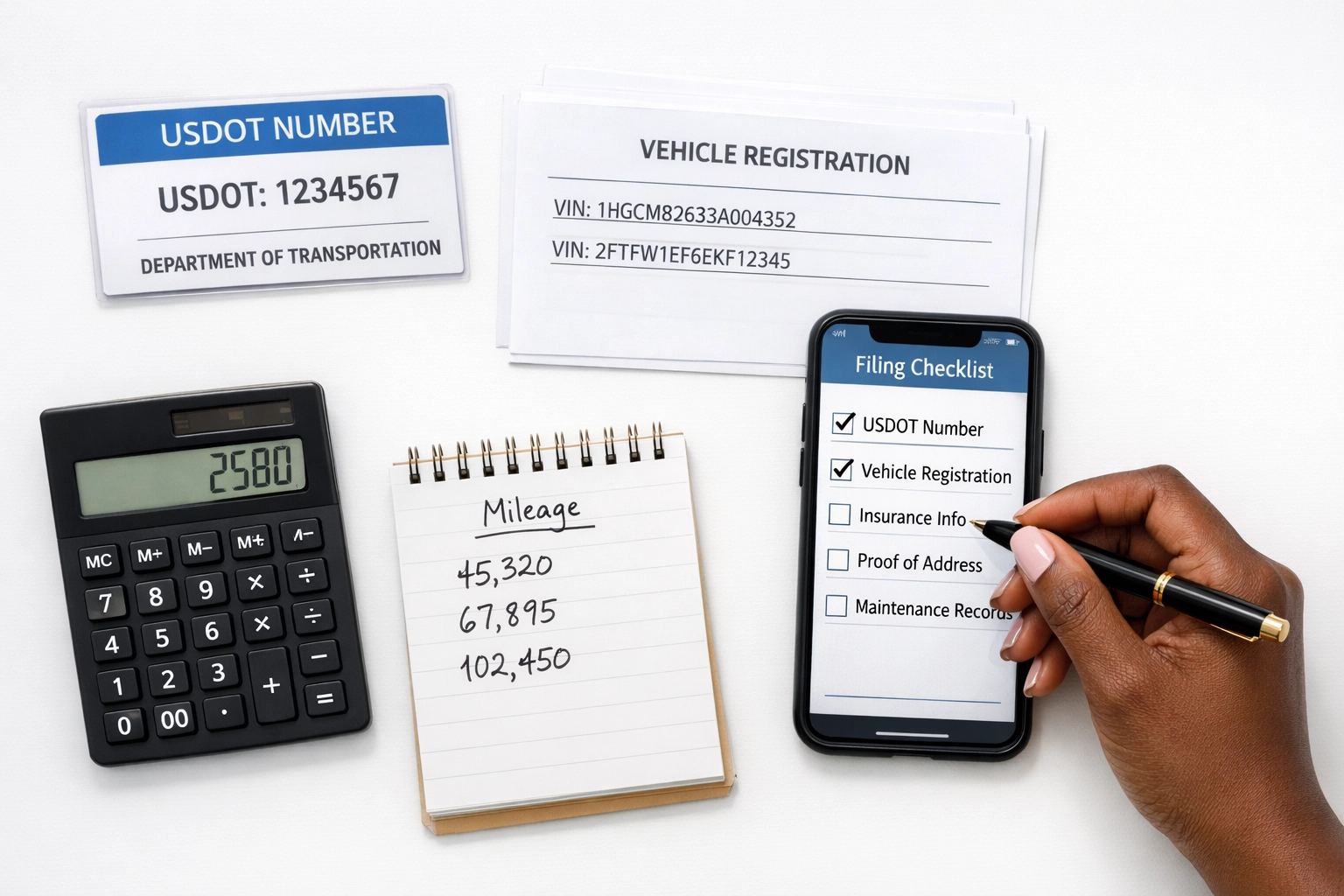
Don't just wing it. Gather these details before you log in to the portal:
- Your USDOT number (obviously)
- Current business legal name and DBA (if applicable)
- Updated mailing address and physical location
- Current phone number and email
- Number of vehicles in your fleet
- Vehicle Identification Numbers (VINs) for each truck
- Annual mileage driven
- Whether you transport hazardous materials
- Any changes to your operation type (for-hire, private, etc.)
Having all this info ready means you won't have to stop mid-form to hunt down documents or call your mechanic to ask for a VIN.
Common Pitfalls That Delay (or Reject) Your Biennial Update
Even with the online system's error checks, carriers still make mistakes that slow down the process. Here are the big ones to avoid:
1. Typos in Critical Fields
A mistyped VIN, an incorrect USDOT number digit, or a wrong ZIP code can trigger an automatic rejection. The system doesn't know if you meant to type "5" or "6": it just knows the data doesn't match.
Fix: Slow down and triple-check every entry. Copy-paste VINs directly from your registration documents instead of typing them manually.
2. Outdated Contact Information
If your email or phone number has changed and you forget to update it, the FMCSA might try to reach you about an issue and get no response. This can lead to delays or even compliance problems.
Fix: Update your contact info first, then move through the rest of the form.
3. Incorrect Vehicle Counts
Some carriers forget to include all their vehicles, or they list trucks they've already sold. The FMCSA uses this data for safety ratings and compliance checks, so accuracy matters.
Fix: Do a physical count or review your current registration paperwork before you start.
4. Skipping the "Nothing Changed" Updates
This is a big one. Carriers think, "Nothing changed, so I'll skip this year." Wrong. The biennial update is required even if nothing changed. Your job is to confirm that everything is still accurate.
Fix: File every two years, no exceptions. Even if you just click through and confirm everything is the same, you still have to file.
5. Missing the Filing Window
You have a 30-day window around your assigned filing month. Miss it, and you could face fines starting at $1,000+ per day. Not fun.
Fix: Set a calendar reminder three months before your due date. File early if you can: there's no penalty for filing ahead of schedule.
6. Not Printing Confirmation
Once you file, print or save a PDF of your confirmation page. If there's ever a question about whether you filed on time, this is your proof.
Fix: As soon as you hit submit, grab that confirmation and store it somewhere safe (digitally and physically).
When Paper Filing Actually Makes Sense
We said online is the way to go, but there are a few situations where paper filing might be necessary:
- You don't have reliable internet access
- You're dealing with a complex ownership change that requires additional documentation
- You're filing a reinstatement along with your biennial update
Even in these cases, try to get online if possible. But if you absolutely have to mail it in, make sure your handwriting is legible, your form is complete, and you're mailing it to the correct address. And give yourself at least six weeks of lead time before your deadline.
Quick Tips for a Smooth Filing Experience
- File during business hours: If you run into an issue, FMCSA support is available Monday–Friday, 8 AM to 8 PM Eastern.
- Use Chrome or Edge: The FMCSA portal works best with these browsers. Avoid older versions of Internet Explorer.
- Have your EIN handy: Some forms ask for your Employer Identification Number for verification.
- Review before you submit: Once you hit that button, you can't undo it. Take two minutes to scroll through and confirm everything is correct.
You've Got This
Filing your biennial update doesn't have to be a stressful ordeal. With the right prep, a little attention to detail, and 20 minutes of focused time, you can knock it out and move on with your day.
Remember: the goal isn't perfection: it's accuracy. Make sure your info is current, double-check the critical fields, and submit before your deadline. That's it.
Need help navigating the process or dealing with a complex filing situation? The Trucker Consultant team is here to help. Check out our consulting services or grab our Done-For-You package if you'd rather hand the whole thing off to the pros.
Now go file that update. You've got this. 🚛